Diagnose Slow Loading WordPress Admin Dashboard
Struggling to diagnose a slow loading WordPress admin dashboard? As Shafat Mahmud Khan, I share 8+ years of practical fixes for a faster backend. Learn
On this page
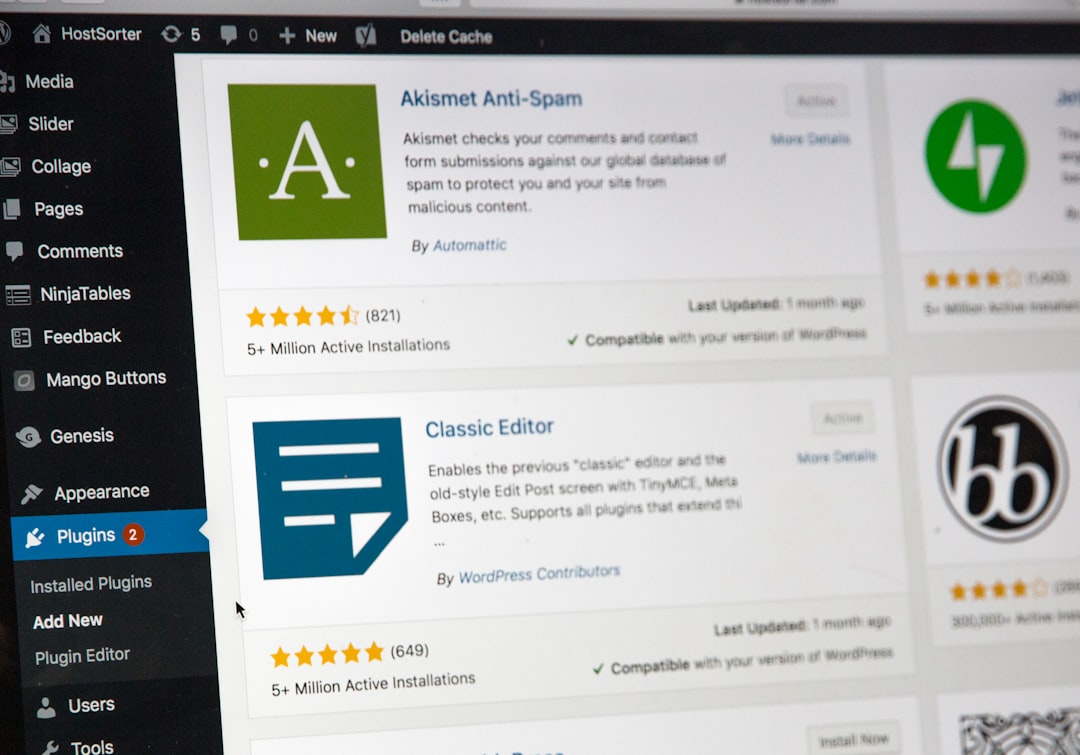
There's nothing quite as frustrating for a web developer as a sluggish WordPress admin dashboard. You're trying to push out an update, approve a comment, or just check an order, and every click feels like an eternity. As a developer who's spent over 8 years building robust WordPress and WooCommerce solutions, including my OpenWA WhatsApp Gateway plugin and a complex Frontend File Explorer, I've lost count of the times I've needed to diagnose a slow loading WordPress admin dashboard for my own projects or for clients. It's not just an annoyance; it impacts productivity, user experience, and ultimately, your business.
In this post, I'm not going to give you theoretical advice. We're diving into the trenches, exploring the real-world culprits I've encountered and the actionable steps I take to identify and fix them. From bloated databases to rogue plugins, and from server configurations to external API calls, I'll walk you through my proven methodology.
The Initial Sweep: Basic Checks and Common Culprits
Before diving deep into code and databases, I always start with the most obvious candidates. Think of it as triaging a patient - check the vital signs first.
1. Your Hosting Environment: The Foundation of Performance
This is often the first place I look. A cheap, overcrowded shared hosting plan is a common bottleneck. When I started out, I often went for the most budget-friendly options, only to realize later that they severely limited performance.
- Shared Hosting Limitations: Many shared hosts cram too many sites onto one server. This means you're competing for CPU, RAM, and I/O with hundreds of other websites. For small personal blogs or very low-traffic sites, Hostinger offers budget-friendly plans that can get you started.
- Managed WordPress Hosting: For clients or high-traffic projects where performance is non-negotiable, I lean towards managed solutions. Kinsta, with its Google Cloud infrastructure and advanced caching, is my go-to recommendation for premium managed WordPress hosting. They handle server optimization, security, and provide excellent support, freeing me up to focus on development.
- VPS/Cloud Hosting: When I need complete control over the server environment, especially for custom applications or scaling my own API backends (like for my OpenWA WhatsApp Gateway's external API integration), DigitalOcean offers flexible and scalable cloud VPS solutions. It gives me the freedom to fine-tune everything.
A quick chat with your host or an upgrade to a more robust plan can sometimes resolve a slow admin dashboard instantly.
2. WordPress Core, Themes, and Plugins: Keep Them Updated
It sounds basic, but outdated software can be a performance killer and a security risk. Newer versions of WordPress, themes, and plugins often include performance enhancements and bug fixes.
- WordPress Core: Always keep your WordPress installation up to date. New versions bring significant performance improvements.
- PHP Version: This is critical. Running an outdated PHP version (e.g., PHP 7.4 when PHP 8.x is available) can severely impact performance. Modern PHP versions offer substantial speed gains. Make sure your host supports the latest stable PHP version and update it in your hosting control panel.
- Theme and Plugins: Similarly, ensure your active theme and all plugins are running their latest versions. Developers constantly optimize their code.
The Deep Dive: Plugins, Themes, and Database Optimization
Once the basics are covered, the real detective work begins. In my experience, the vast majority of slow admin issues stem from poorly coded plugins, resource-intensive themes, or an overburdened database.
1. Identifying Rogue Plugins and Themes
This is where I spend a significant amount of my time troubleshooting. A single poorly coded plugin or an overly complex theme can cripple your entire WordPress admin. I've seen it countless times, even with seemingly innocuous plugins.
My OpenWA WhatsApp Gateway plugin, for instance, integrates deeply with WooCommerce, handles real-time notifications, OTP verification, and generates PDF invoices. Building something with that much functionality, I constantly have to consider its impact on the admin, ensuring its settings pages and notification logs don't become a drag. The same goes for my Frontend File Explorer plugin, which provides a Windows Explorer-like interface - efficient file system interaction and AJAX calls were paramount to prevent the admin from grinding to a halt.
The Systematic Deactivation Method:
- Deactivate All Plugins: Go to 'Plugins' > 'Installed Plugins' and deactivate all of them. Then, check your admin dashboard speed. If it's fast, you've found your culprit category.
- Reactivate One by One: Reactivate your plugins one by one, checking the admin speed after each activation. The moment the admin slows down, you've identified the problematic plugin.
- Switch to a Default Theme: If deactivating all plugins doesn't fix it, switch your active theme to a default WordPress theme (like Twenty Twenty-Four). If the admin speeds up, your theme is the issue.
It's tedious, but effective. Once identified, you can either replace the problematic plugin/theme or contact its developer for a fix. Sometimes, simply having too many plugins, even well-coded ones, can lead to a slowdown due to combined overhead.
2. Database Bloat and Inefficiency
A WordPress database can grow exponentially, especially on active sites. Post revisions, transients, abandoned cart data, log entries from plugins, and general garbage can accumulate and significantly slow down your database queries, which directly impacts admin loading times.
My experience building a School ERP system in Laravel, managing student data, fee collections, and attendance, or a Point of Sale system for a repair shop, has deeply ingrained in me the importance of optimized database queries and efficient data handling - principles I apply directly to WordPress troubleshooting.
What to look for:
wp_optionsTable Bloat: This is a notorious offender. Theautoloaded data in thewp_optionstable can become huge, causing every WordPress page load (including admin pages) to fetch unnecessary data. Many plugins mistakenly store large amounts of data withautoload=yes.- Post Revisions: Every time you save a post, WordPress creates a revision. Over time, this can add thousands of entries to your
wp_poststable. - Transients: These are temporary cached data. While useful, they can accumulate if not properly cleaned up by plugins.
- Orphaned Data: When you delete a plugin, it often leaves behind tables or entries in the
wp_optionstable.
Solutions:
- Database Optimization Plugins: Use a plugin like WP-Optimize or Advanced Database Cleaner to clean up revisions, optimize tables, delete transients, and remove orphaned data.
- Manual Database Cleanup (Advanced): For experienced users, direct database access via phpMyAdmin allows for more surgical cleanup. Be extremely cautious and always, always take a backup first. You might identify specific entries in
wp_optionswith largeoption_values that haveautoload='yes'and investigate their source. - Limit Post Revisions: Add this line to your
wp-config.phpfile to limit post revisions:define( 'WP_POST_REVISIONS', 5 );
3. PHP Memory Limit Exhaustion
WordPress and its plugins can be memory-intensive. If your PHP memory limit is too low, it can lead to slowdowns or even fatal errors. I've tackled many situations where increasing the memory limit was the crucial step. I've even written a detailed guide on how to Fix WordPress Memory Exhausted Error: Increase…
To increase it, add the following line to your wp-config.php file, preferably above the /* That's all, stop editing! Happy publishing. */ line:
define( 'WP_MEMORY_LIMIT', '256M' );A 256M or 512M limit is usually sufficient for most sites. For more complex setups or if you're frequently working on custom development, a higher limit might be necessary.
Server Resources and Configuration Beyond Hosting
Even with good hosting, specific server configurations can impact your admin's responsiveness.
1. Server-Side Caching
While often associated with frontend performance, proper server-side caching (object caching, opcode caching) can significantly speed up the backend by reducing database queries and PHP execution time. Technologies like Redis or Memcached can provide object caching, which is extremely beneficial for WordPress, especially its admin where many database calls are made.
2. CDN Configuration
A Content Delivery Network (CDN) primarily speeds up static asset delivery (images, CSS, JS) to your users globally. While its direct impact on admin dashboard speed might be less pronounced than on the frontend, a well-configured CDN can offload requests from your origin server, freeing up resources that might otherwise contribute to a slow loading WordPress admin dashboard. If your admin pages are loading static assets from slow origins, a CDN could indirectly help.
3. Cron Jobs
WordPress has a built-in pseudo-cron system (WP-Cron) that triggers scheduled tasks (e.g., publishing scheduled posts, checking for updates) when someone visits your site. If your site has low traffic, cron jobs might not run consistently. Conversely, if you have frequent or heavy cron jobs running on every page load, it can slow down your admin. For optimal performance, especially on DigitalOcean or Kinsta where you have more control, I recommend disabling WP-Cron and setting up a proper server-level cron job via SSH.
Add this to your wp-config.php:
define('DISABLE_WP_CRON', true);Then, set up a server cron job to hit wp-cron.php at regular intervals (e.g., every 5 minutes).
Debugging and Monitoring: My Developer Toolkit
Sometimes, the problem isn't obvious. This is when I pull out my developer tools to pinpoint exactly what's taking so long.
1. Query Monitor Plugin
This is my absolute favorite plugin for debugging WordPress performance. Query Monitor shows you database queries, PHP errors, hooks, conditionals, HTTP API calls, and much more, all right in your admin bar. It's invaluable for identifying:
- Slow or redundant database queries.
- Long-running PHP scripts.
- HTTP requests made by plugins that might be timing out.
When I'm troubleshooting a slow admin, Query Monitor is the first plugin I activate (after deactivating others) to get a real-time snapshot of what's happening under the hood.
2. Browser Developer Tools
Your browser's developer tools (F12 in Chrome/Firefox) are excellent for frontend-side analysis. The 'Network' tab can show you:
- Which assets (CSS, JS, images) are taking the longest to load.
- External requests made by JavaScript that might be slowing down the page.
- The overall time to first byte (TTFB), indicating server response time.
3. Server Logs
Error logs (PHP error logs, Apache/Nginx error logs) can reveal underlying issues that aren't visible in the WordPress admin. Look for frequent errors or warnings that might indicate a struggling plugin or a misconfigured server component. Many hosts provide easy access to these logs through their control panel.
My Go-To Strategies for a Performant WordPress Admin
After years of battling slow WordPress admins, I've developed a few core principles that guide my approach:
- Always Start with a Staging Environment: Never, ever make significant changes directly on a live site. Use a staging environment to test plugin updates, theme changes, or server configuration tweaks. This prevents downtime and stress. For setting up a local environment for this, you might find my guide on Setting Up Local Wordpress Development… useful.
- Regular Backups: Before any major troubleshooting, ensure you have a complete, recent backup of your site (files and database). This is your safety net.
- Be Selective with Plugins: Every plugin adds overhead. Before installing one, ask: 'Do I really need this, or can I achieve the functionality with custom code?' My projects, like the OpenWA WhatsApp Gateway, are built with core functionality in mind, but even I need to be careful about what other plugins I use alongside them. For example, if I wanted to add a custom post type for a specific feature, I'd rather Create Custom Post Type in WordPress Without a Plugin than install a dedicated CPT plugin.
- Optimize Images: While more impactful on the frontend, unoptimized images can still affect admin performance if they're loaded in the media library or post editor.
- Keep an Eye on External Requests: Some plugins make requests to external APIs. If those APIs are slow or unresponsive, they can drag down your admin. The OpenWA WhatsApp Gateway, for instance, communicates with a WhatsApp API. If that API were to experience downtime, I'd have to ensure my plugin handles those failures gracefully without stalling the admin UI.
- Clean Up Unused Media: Over time, your media library accumulates images and files that are no longer used. Periodically clean them out to reduce database load and improve media library performance.
- Address Mixed Content Warnings: While primarily a frontend issue, resolving mixed content can sometimes indirectly improve admin performance by eliminating unnecessary redirects or insecure requests that your server might struggle with. You can find steps on how to Resolve Mixed Content Warnings After WordPress… in my other post.
FAQ
Q: Why is my WordPress admin so slow even after clearing cache?
A: Clearing cache is a good first step, but a slow admin often points to deeper issues beyond superficial caching. The problem might lie in bloated database tables (especially wp_options), resource-hungry plugins, an outdated PHP version, or insufficient server resources from your hosting provider. My approach involves systematically deactivating plugins, checking your PHP version, and performing database optimization before solely relying on caching solutions.
Q: How can I identify which plugin is slowing down my WordPress admin dashboard?
A: The most reliable method I use is systematic deactivation. Deactivate all plugins, then reactivate them one by one, checking your admin speed after each activation. The plugin that causes a noticeable slowdown is likely the culprit. For more detailed analysis, install the Query Monitor plugin, which can show you which plugins are executing slow database queries or PHP scripts.
Q: Is my hosting always the reason for a slow WordPress admin?
A: While hosting is a frequent contributor, it's not always the sole reason. An underpowered hosting plan (like an overcrowded shared host) will certainly exacerbate performance issues. However, even on premium hosting like Kinsta, a poorly optimized theme, a conflicting plugin, or a massive, unoptimized database can still lead to a slow loading WordPress admin dashboard. It's a combination of factors, and my troubleshooting process aims to rule out each potential cause systematically.
Conclusion
A slow WordPress admin dashboard is a productivity killer, but it's rarely an insurmountable problem. By approaching it systematically, starting with the basics and moving to more in-depth diagnostics, you can identify and resolve the root causes. My 8+ years of building and maintaining WordPress and WooCommerce solutions have taught me that patience and a methodical approach are your best friends when tackling these issues.
Don't let a sluggish backend hold you back. Implement these real-world strategies, and you'll be well on your way to a faster, more efficient WordPress experience. Have you encountered unique challenges or discovered a particularly tricky fix for a slow admin? Share your experiences in the comments below - we're all learning from each other!
Need help with your project?
Comments(0)
No comments yet. Be the first to share your thoughts.