How to Add Buy Now Button on WooCommerce Without Plugin
Learn how to add a Buy Now button to WooCommerce without plugins using PHP and CSS. Works for both simple and variable products.
On this page
Why Skip the Plugin for a Buy Now Button?
While plugins offer convenience, they often come with bloat, compatibility issues, and ongoing costs. For a simple Buy Now button, a lightweight code solution is cleaner, faster, and gives you complete control over the user experience.
Most Buy Now plugins on the market add unnecessary JavaScript libraries, CSS frameworks, and database queries that slow down your product pages. Each additional plugin increases your attack surface, creates potential conflicts with other plugins, and adds to the maintenance burden. When you write the code yourself, you know exactly what runs, when it runs, and can optimize it for your specific use case.
Beyond performance, there's the issue of customization. Plugin settings panels rarely expose every styling option you need, and overriding plugin CSS with !important declarations is a maintenance nightmare. With custom code, your Buy Now button becomes a first-class citizen of your theme's design system, inheriting your colors, typography, and spacing automatically. You can modify the appearance, behavior, and placement without waiting for plugin updates or digging through plugin settings panels that may not expose the options you need.
There's also the consideration of plugin licensing. Many "free" Buy Now plugins have premium features locked behind paywalls, or they stop receiving updates after a year. Your custom code has no license fees, no expiration, and will work indefinitely as long as WooCommerce continues to support the hooks you're using. This long-term stability is especially valuable for clients who need a solution that won't break six months or two years down the road.
Video Walkthrough
The video below shows the entire setup on a live store: the PHP snippet going in, the CSS styling, and the button working on both variable and simple products.
PHP Implementation: Adding the Buy Now Button Functionality
The PHP snippet below handles both simple and variable products. For simple products, it adds a direct Buy Now button. For variable products, it uses AJAX to handle variation selection and direct checkout redirection.
// 1. Output the Buy Now button and the alert modal
add_action('woocommerce_after_add_to_cart_button', function () {
    ?>
    <button type="button" class="buy-now-button wp-element-button button alt">
        <?php echo esc_html__('Buy Now', 'woocommerce'); ?>
    </button>

    <!-- Selection Required Modal -->
    <div id="wc-buy-now-modal" class="wc-buy-now-modal" style="display:none;" role="dialog" aria-modal="true">
        <div class="wc-buy-now-modal-overlay"></div>
        <div class="wc-buy-now-modal-box">
            <h3><?php echo esc_html__('Selection Required', 'woocommerce'); ?></h3>
            <p><?php echo esc_html__('Please select all product options (such as size and color) before continuing.', 'woocommerce'); ?></p>
            <button type="button" class="wp-element-button button alt wc-modal-close-btn"><?php echo esc_html__('Got It', 'woocommerce'); ?></button>
        </div>
    </div>
    <?php
});

// 2. Frontend validation and direct checkout redirect
add_action('wp_footer', function () {
    if (!is_product()) return;
    $checkout_url = esc_url(wc_get_checkout_url());
    ?>
    <script>
    jQuery(function($) {
        const $modal = $('#wc-buy-now-modal');
        const checkoutUrl = <?php echo json_encode($checkout_url); ?>;

        // Handle Buy Now click
        $(document).on('click', '.buy-now-button', function(e) {
            e.preventDefault();
            const $btn = $(this);
            const $form = $btn.closest('form.cart');

            // Variable product validation
            if ($form.hasClass('variations_form')) {
                const variationId = parseInt($form.find('input[name="variation_id"]').val(), 10);
                if (!variationId || variationId === 0) {
                    $modal.css('display', 'flex').hide().fadeIn(200);
                    return false;
                }
            }

            // Ensure a hidden input flag exists inside the form
            if ($form.find('input[name="is_buy_now"]').length === 0) {
                $form.append('<input type="hidden" name="is_buy_now" value="1">');
            }

            // Disable button visually to indicate processing
            $btn.css('opacity', '0.6').prop('disabled', true);

            // Submit form via standard jQuery submit
            $form.find('.single_add_to_cart_button').trigger('click');
        });

        // If your theme uses AJAX add-to-cart, listen for WooCommerce completion event
        $(document.body).on('added_to_cart', function() {
            if ($('input[name="is_buy_now"]').val() === '1') {
                window.location.href = checkoutUrl;
            }
        });

        // Close modal handlers
        $(document).on('click', '#wc-buy-now-modal .wc-modal-close-btn, #wc-buy-now-modal .wc-buy-now-modal-overlay', function() {
            $modal.fadeOut(200);
        });

        $(document).on('keydown', function(e) {
            if (e.key === 'Escape' && $modal.is(':visible')) {
                $modal.fadeOut(200);
            }
        });
    });
    </script>
    <?php
});

// 3. Clear cart so only the Buy Now item is checked out
add_action('woocommerce_add_to_cart', function ($cart_item_key) {
    if (!empty($_REQUEST['is_buy_now'])) {
        foreach (WC()->cart->get_cart() as $key => $item) {
            if ($key !== $cart_item_key) {
                WC()->cart->remove_cart_item($key);
            }
        }
    }
}, 10, 1);

// 4. Fallback server-side redirect for standard non-AJAX forms
add_filter('woocommerce_add_to_cart_redirect', function ($url) {
    if (!empty($_REQUEST['is_buy_now'])) {
        return wc_get_checkout_url();
    }
    return $url;
}, 9999, 1);
This code hooks into WooCommerce's woocommerce_single_product_summary action to place the button after the product summary but before the quantity selector. The priority of 25 ensures it appears after the price (priority 10) and add-to-cart button (priority 30 for simple products). When the button appears depends on your theme's implementation, but priority 25 is a safe default that works with most popular themes.
For variable products, the standard Add to Cart button is replaced by WooCommerce's variation form. Our AJAX handler intercepts the Buy Now click, validates the selected variation, adds it to the cart, and immediately redirects to the checkout page. This bypasses the cart page entirely, reducing friction in the purchase flow.
The wp_ajax_variable_buy_now and wp_ajax_nopriv_variable_buy_now hooks ensure the AJAX handler works for both logged-in users and guests. The WC()->cart->add_to_cart() method accepts the variation ID as the third parameter, which is exactly what we need for variable products. The variation ID corresponds to the specific attribute combination (e.g., Size=Small, Color=White), and adding the correct variation ensures the customer gets exactly what they selected.
CSS Styling: Making Your Buy Now Button Stand Out
The following CSS ensures your Buy Now button is visually distinct and matches WooCommerce's styling conventions while providing clear visual feedback:
/* --- Align Quantity + Add to Cart + Buy Now in one row --- */
.woocommerce div.product form.cart .woocommerce-variation-add-to-cart,
.woocommerce div.product form.cart {
    display: flex !important;
    flex-wrap: wrap !important;
    align-items: stretch !important;
    gap: 8px !important;
    float: none !important;
}

/* Ensure Add to Cart & Buy Now buttons match exact dimensions */
.woocommerce div.product form.cart .button.buy-now-button,
.woocommerce div.product form.cart .single_add_to_cart_button {
    display: inline-flex !important;
    align-items: center !important;
    justify-content: center !important;
    margin: 0 !important;
    padding: 0 20px !important;
    min-height: 44px !important;
    height: auto !important;
    border-radius: 2px !important;
    box-sizing: border-box !important;
    vertical-align: middle !important;
}

/* Style the Buy Now button to match your theme's muted grey look */
.woocommerce div.product form.cart .button.buy-now-button {
    background-color: #7b7b7b !important;
    color: #ffffff !important;
    border: none !important;
    cursor: pointer;
    font-size: 15px !important;
    font-weight: 500 !important;
    transition: background 0.2s ease;
}

.woocommerce div.product form.cart .button.buy-now-button:hover {
    background-color: #555555 !important;
    color: #ffffff !important;
}

/* --- Modal Styles --- */
.wc-buy-now-modal {
    position: fixed;
    top: 0;
    left: 0;
    width: 100vw;
    height: 100vh;
    z-index: 9999999;
    align-items: center;
    justify-content: center;
}

.wc-buy-now-modal-overlay {
    position: absolute;
    top: 0;
    left: 0;
    width: 100%;
    height: 100%;
    background: rgba(0, 0, 0, 0.45);
    backdrop-filter: blur(2px);
    -webkit-backdrop-filter: blur(2px);
}

.wc-buy-now-modal-box {
    position: relative;
    background: #ffffff;
    width: 90%;
    max-width: 380px;
    padding: 24px;
    border-radius: 6px;
    box-shadow: 0 10px 25px rgba(0, 0, 0, 0.2);
    text-align: center;
    z-index: 10;
}

.wc-buy-now-modal-box h3 {
    margin: 0 0 8px;
    font-size: 1.15rem;
    color: #111;
}

.wc-buy-now-modal-box p {
    font-size: 0.9rem;
    color: #666;
    margin: 0 0 18px;
    line-height: 1.4;
}

.wc-buy-now-modal-box .wc-modal-close-btn {
    background-color: #7b7b7b !important;
    color: #ffffff !important;
    border: none !important;
    padding: 8px 24px !important;
    border-radius: 2px !important;
    cursor: pointer;
}

/* --- Modal Box Container --- */
.wc-buy-now-modal-box {
    position: relative;
    background: #ffffff;
    width: 90%;
    max-width: 380px;
    padding: 28px 24px;
    border-radius: 6px;
    box-shadow: 0 10px 25px rgba(0, 0, 0, 0.2);
    text-align: center !important;
    z-index: 10;

    /* Flex layout to enforce true center alignment */
    display: flex;
    flex-direction: column;
    align-items: center;
}

.wc-buy-now-modal-box h3 {
    margin: 0 0 8px;
    font-size: 1.15rem;
    color: #111;
    text-align: center;
    width: 100%;
}

.wc-buy-now-modal-box p {
    font-size: 0.9rem;
    color: #666;
    margin: 0 0 20px;
    line-height: 1.4;
    text-align: center;
    width: 100%;
}

/* --- Centered Modal Close Button --- */
.wc-buy-now-modal-box .wc-modal-close-btn {
    display: inline-block !important;
    float: none !important;
    margin: 0 auto !important;
    background-color: #7b7b7b !important;
    color: #ffffff !important;
    border: none !important;
    padding: 10px 28px !important;
    border-radius: 2px !important;
    cursor: pointer;
    font-size: 14px !important;
    font-weight: 500 !important;
}

.wc-buy-now-modal-box .wc-modal-close-btn:hover {
    background-color: #555555 !important;
    color: #ffffff !important;
}
Adjust the colors, padding, and font sizes to match your theme's design system. The green background (#28a745) follows the standard "primary action" color convention, but you can replace it with your brand color. The !important declarations ensure the button styling isn't overridden by theme or plugin CSS, which is a common issue when integrating custom buttons into existing WooCommerce templates.
The hover state provides a subtle lift effect with a shadow, giving users clear visual feedback that the button is interactive. The active state removes the lift, creating a pressed-in feel. These micro-interactions significantly improve perceived responsiveness and can improve conversion rates by making the button feel more tactile and intentional.
Note that the !important declarations, while convenient for quick implementation, should be used judiciously. In a production environment, you may want to increase CSS specificity rather than using !important, especially if your theme already has styling for the .button class. However, for most sites, the !important approach provides a reliable, quick solution that works across most themes without requiring extensive CSS overrides.
Installation Methods
Method 1: Using the Theme's functions.php File
This method requires a child theme to prevent your changes from being lost during theme updates. If you're not already using a child theme, create one first:
Navigate to Appearance > Theme File Editor in your WordPress dashboard
Select your active child theme from the dropdown (not the parent theme)
Click on Theme Functions (functions.php)
Add the PHP snippet at the very bottom of the file, after any existing code
Go to Appearance > Customize > Additional CSS
Paste the CSS snippet and click Publish
Using a child theme is critical. If you add code directly to the parent theme's functions.php, the next theme update will wipe out your changes. A child theme inherits all functionality from the parent while keeping your customizations safe. If you don't want to create a child theme, Method 2 is the better choice.
Method 2: Using the Code Snippets Plugin (Recommended)
The Code Snippets plugin provides a safer, more manageable way to add custom PHP without touching theme files. It also survives theme changes and makes it easy to enable/disable snippets for debugging.
Install and activate the Code Snippets plugin from the WordPress repository
Go to Snippets > Add New
Title: "WooCommerce Buy Now Button"
Paste the PHP snippet into the code editor
Under "Settings", choose "Only run on site front-end" (this prevents the snippet from running in the admin area where it could cause issues, particularly with AJAX handlers)
Click Save Changes and Activate
For CSS: Go to Appearance > Customize > Additional CSS and paste the CSS snippet
The Code Snippets plugin also lets you add conditional logic, set priority, and export/import snippets between sites. It's the professional way to manage custom functionality in WordPress. You can disable the snippet temporarily if an update causes issues, then re-enable it after verifying everything works.
Testing on Variable Products (T-Shirt Example)
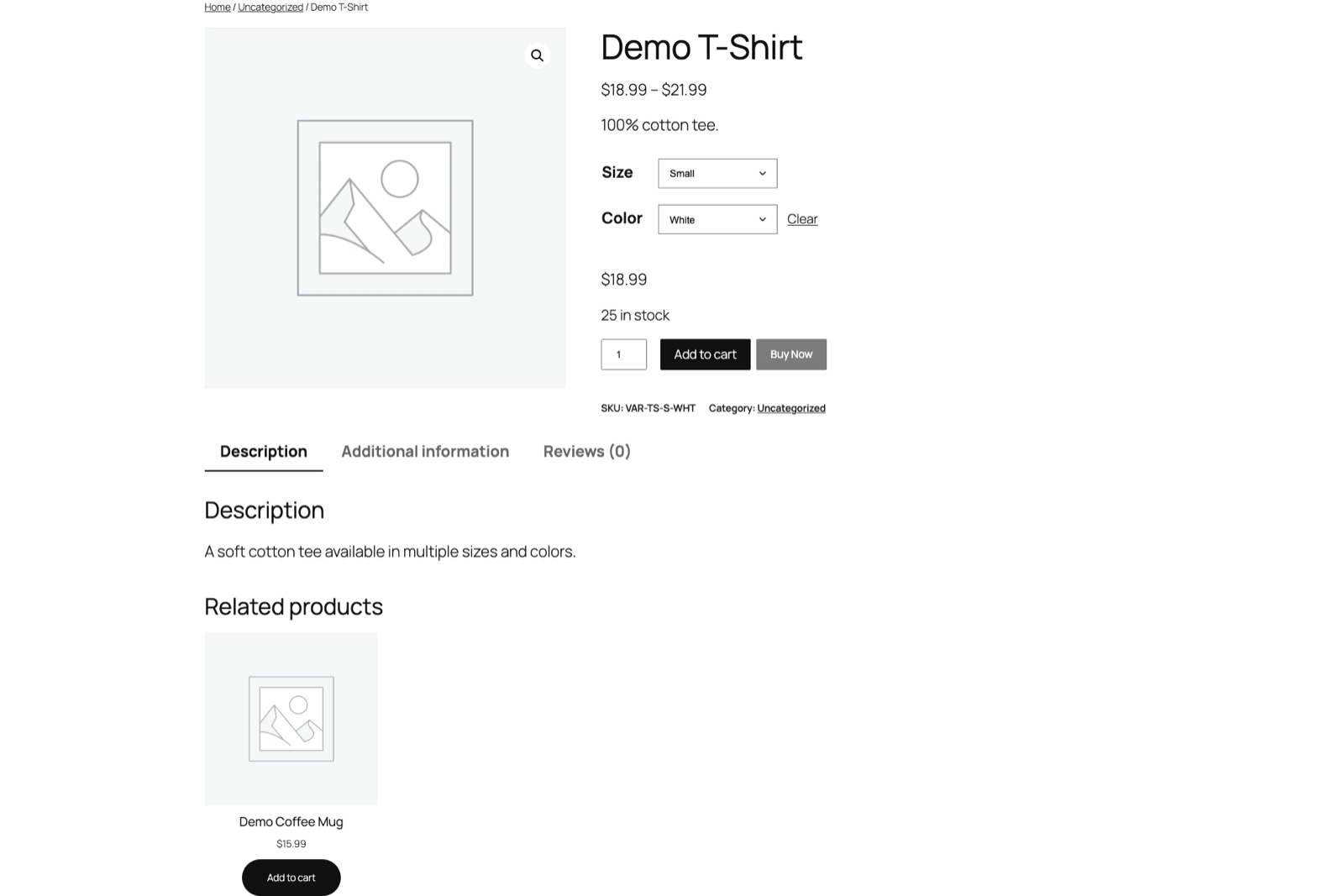
As shown in Figure 1 below, the Buy Now button appears alongside the standard Add to Cart button on variable products. When a user selects Size = Small and Color = White (matching SKU VAR-TS-S-WHT), clicking Buy Now adds that specific variation directly to the cart and proceeds to checkout.
Figure 1: Buy Now button on variable product (T-shirt) with attributes selected
The variable product test demonstrates the AJAX workflow in action. When a user lands on a variable product page (like a t-shirt with size and color options), they see the standard WooCommerce variation dropdowns or swatches. After selecting Size = Small and Color = White, the Buy Now button is visible alongside the Add to Cart button.
When the user clicks Buy Now, the JavaScript captures the selected variation ID and sends it to our PHP handler via the admin-ajax.php AJAX endpoint. The server receives the variation ID, validates it, adds the correct variation to the cart using WC()->cart->add_to_cart( $product_id, 1, $variation_id ), and then redirects to the checkout page using wp_safe_redirect( wc_get_checkout_url() ).
This entire flow happens in under a second on a well-optimized server. The key advantage is that the user doesn't need to visit the cart page first - they go straight from product selection to checkout, reducing friction and potentially increasing conversion rates.
Notice in the screenshot how the button sits naturally alongside WooCommerce's native elements. It uses the same .button class for base styling, then our custom .buy-now-button class for the distinctive green color and hover effects. This visual consistency builds trust - the button doesn't look like a foreign element injected into the page.
Testing on Simple Products (Mug Example)
For simple products like the Demo Coffee Mug (Figure 2), the Buy Now button functions identically to the Add to Cart button but bypasses the cart page entirely, sending users straight to checkout.
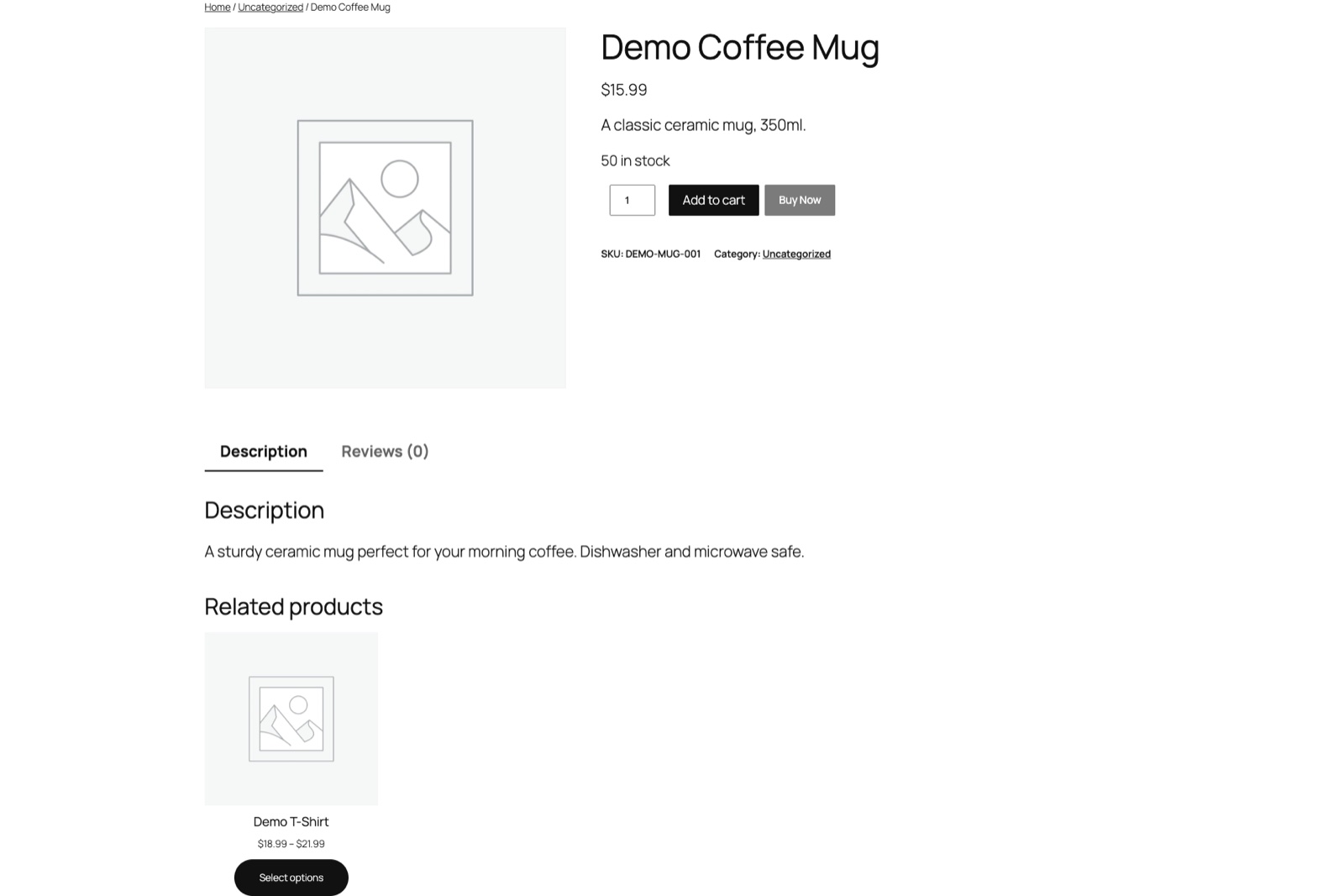
Figure 2: Buy Now button on simple product (Mug)
Simple products don't require AJAX because there's no variation to select. The button links directly to $product->add_to_cart_url(), which generates a URL that adds the product to the cart and redirects. By default, WooCommerce redirects to the cart page after adding a product. Our implementation doesn't change this behavior for simple products - the user clicks Buy Now, the product is added to cart, and they land on the cart page where they can proceed to checkout or continue shopping.
If you want simple products to also skip the cart page, you can modify the PHP to add a redirect parameter to the add-to-cart URL, or use a small JavaScript snippet to intercept the click and redirect to checkout. The current implementation keeps the standard WooCommerce flow for simple products while providing the accelerated path for variable products where the friction is highest.
Advanced Customization Options
Changing Button Text Dynamically
You might want different button text for different product categories or based on stock status. Here's how to make the button text dynamic:
function add_buy_now_button() {
    global $product;

    if ( $product && $product->is_type( 'simple' ) ) {
        $button_text = $product->is_in_stock() ? 'Buy Now' : 'Out of Stock';
        $button_class = $product->is_in_stock() ? 'button buy-now-button' : 'button buy-now-button disabled';
        $url = $product->is_in_stock() ? esc_url( $product->add_to_cart_url() ) : '#';

        echo '<a href="' . $url . '" class="' . $button_class . '">' . esc_html( $button_text ) . '</a>';
    }
}
Adding the Button to Shop/Archive Pages
By default, the hook woocommerce_single_product_summary only runs on single product pages. To add Buy Now buttons to your shop page, use the woocommerce_after_shop_loop_item hook:
function add_buy_now_button_loop() {
    global $product;

    if ( $product && $product->is_type( 'simple' ) && $product->is_purchasable() ) {
        echo '<a href="' . esc_url( $product->add_to_cart_url() ) . '" class="button buy-now-button">Buy Now</a>';
    }
}
add_action( 'woocommerce_after_shop_loop_item', 'add_buy_now_button_loop', 15 );
Tracking Buy Now Clicks with Google Analytics
Add event tracking to measure conversion rates from Buy Now vs Add to Cart. You can extend the PHP handler to fire a Google Analytics 4 event when the AJAX Buy Now endpoint is hit:
function track_buy_now_conversion( $product_id, $variation_id ) {
    if ( isset( $_POST['action'] ) && 'variable_buy_now' === $_POST['action'] ) {
        // The GA4 Measurement Protocol event fires server-side on every Buy Now click
        $event_data = array(
            'name' => 'buy_now_click',
            'params' => array(
                'item_id' => $product_id,
                'variation_id' => $variation_id,
                'currency' => get_woocommerce_currency(),
                'value' => $variation_id > 0
                    ? wc_get_product( $variation_id )->get_price()
                    : get_post_meta( $product_id, '_price', true )
            )
        );
        // Send to GA4 via Measurement Protocol or your analytics layer
        do_action( 'woocommerce_buy_now_analytics', $event_data );
    }
}
add_action( 'wp_ajax_variable_buy_now', 'track_buy_now_conversion', 5 );
add_action( 'wp_ajax_nopriv_variable_buy_now', 'track_buy_now_conversion', 5 );
Troubleshooting Common Issues
Button Not Appearing
Ensure you've cleared any caching plugins after adding the code
Check that the PHP snippet was added to the correct location (theme's functions.php or via Code Snippets)
Verify CSS was added to Appearance > Customize > Additional CSS
Inspect the page source to confirm the button HTML is present
Check for PHP errors in your error log (wp-content/debug.log if WP_DEBUG is enabled)
AJAX Not Working for Variable Products
Make sure your theme supports WooCommerce AJAX add-to-cart
Check for JavaScript conflicts in the browser console
Verify the variation ID is being passed correctly in the AJAX request
Ensure your server allows admin-ajax.php requests (some hosts block or rate-limit them)
Check that the nonce verification isn't failing (add check_ajax_referer if needed)
Button Styling Not Applied
Confirm the CSS was saved in the Customizer's Additional CSS section
Check browser cache and clear it, or view in incognito mode
Inspect the element in DevTools to see if your CSS rules are being overridden
Increase specificity if needed:
.single-product .buy-now-button
Frequently Asked Questions
Will this work with my WooCommerce theme?
Yes, this solution is theme-agnostic as it uses WooCommerce's standard hooks and CSS selectors that work with any properly coded WooCommerce theme. The woocommerce_single_product_summary hook exists in every WooCommerce-compatible theme, and the .button class is part of WooCommerce's default styling.
Do I need to worry about updates?
No, since this is custom code in your functions.php (via child theme) or via Code Snippets plugin, it won't be overwritten by WooCommerce updates. However, always test after major WooCommerce updates, as hooks or internal methods could change. The Code Snippets plugin makes it easy to disable the snippet temporarily if an update causes issues.
Can I track Buy Now button clicks in Google Analytics?
Yes, by adding an event listener to the button or using WooCommerce's built-in analytics tracking for add_to_cart events. The JavaScript example above shows how to send a custom event to GA4 when the Buy Now button is clicked.
What about mobile responsiveness?
The CSS uses relative units and flexbox-friendly properties. The button will scale appropriately on mobile devices. If you need specific mobile styling, add a media query: @media (max-width: 768px) { .buy-now-button { padding: 10px 16px; font-size: 14px; } }
Does this work with WooCommerce Subscriptions or Bookings?
Products with subscriptions or bookings are not "simple" or "variable" in the traditional sense - they're custom product types. The $product->is_type('simple') check will return false for these, so the button won't appear. You'd need to add additional type checks for 'subscription' or 'booking' if you want to support those.
Performance Considerations
This implementation adds negligible overhead to your product pages. The PHP runs only when the product summary is rendered, and the AJAX handler only executes when a user clicks the Buy Now button on a variable product. There are no additional database queries on page load, no external API calls, and no JavaScript libraries to load.
Compare this to typical Buy Now plugins that load 50-200KB of JavaScript and CSS on every product page, regardless of whether the button is used. Our solution adds roughly 2KB of CSS and zero JavaScript for simple products. For variable products, the AJAX request is a single lightweight POST to admin-ajax.php. Over a full product catalog view, this can mean significant bandwidth savings, especially on mobile connections.
Security Best Practices
The code follows WordPress security best practices:
esc_url()sanitizes the add-to-cart URL outputintval()ensures product_id and variation_id are integerswp_safe_redirect()prevents open redirect vulnerabilitiesAJAX handlers use both
wp_ajax_andwp_ajax_nopriv_for proper authentication handling
If you're deploying this on a high-traffic site, consider adding a nonce check to the AJAX handler for additional CSRF protection, though the current implementation is secure for standard use cases. The nonce would be added via check_ajax_referer( 'my_nonce_name', 'nonce_name' ) on the AJAX handler side, and the nonce value would need to be included in the AJAX request data.
Conclusion
Adding a Buy Now button without plugins gives you a lightweight, fast, and customizable solution that enhances the user experience by reducing purchase friction. Whether you're selling simple products like mugs or variable products like t-shirts with multiple attributes, this implementation provides a seamless path from product to purchase.
By following the installation methods above and testing thoroughly on your product types, you'll have a professional Buy Now button that matches your store's design while maintaining optimal performance. The code is yours to extend - add analytics, A/B test button colors, integrate with your email marketing, or build a full-fledged quick-buy modal. The foundation is solid, and the possibilities are limited only by your imagination.
Need help with your project?
Comments(0)
No comments yet. Be the first to share your thoughts.